
❓ What is the Task Overview tab?
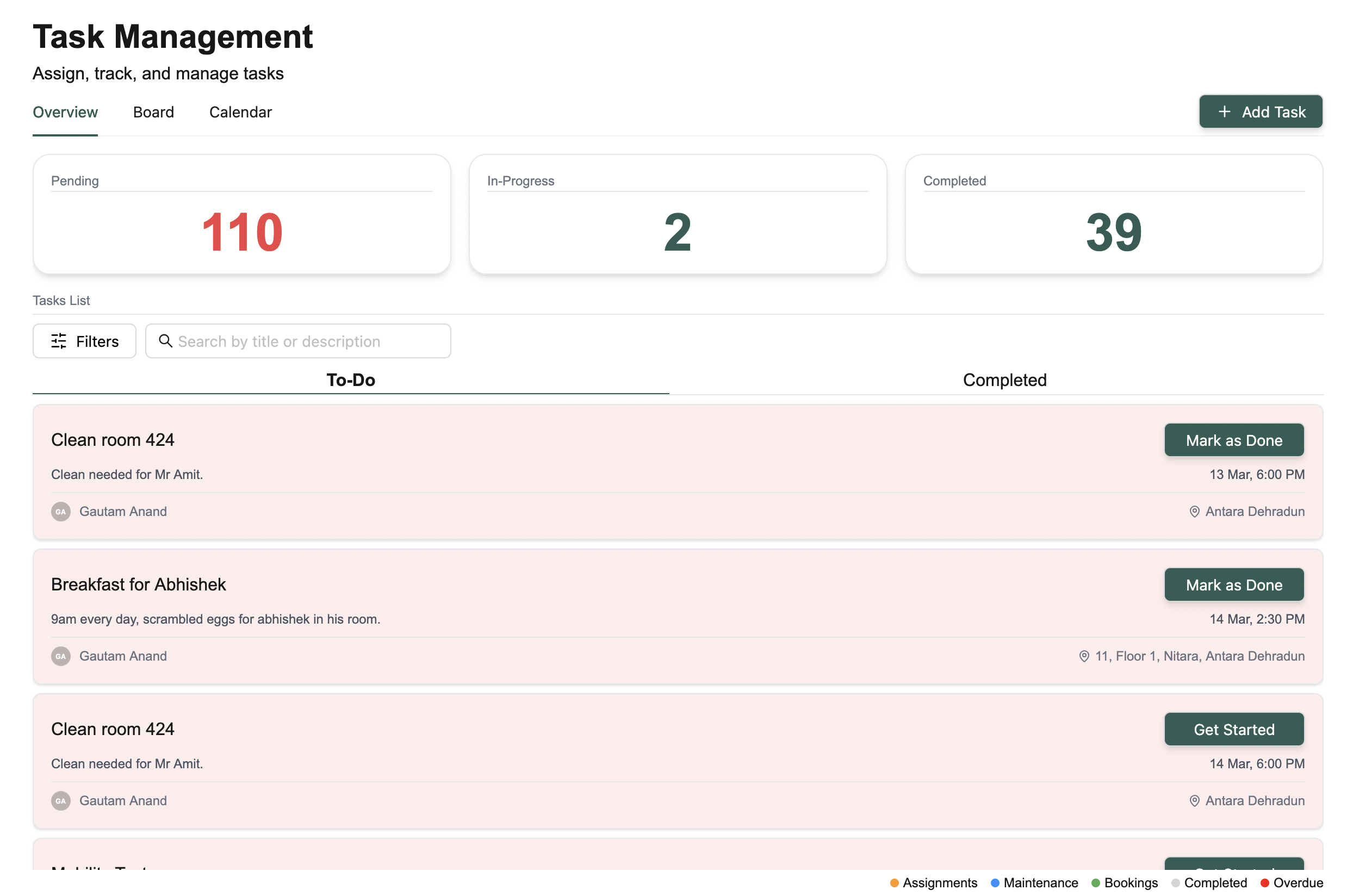
The Overview tab gives you a clear summary of all your tasks — what’s pending, what’s in progress, and what’s already completed.It’s designed to work seamlessly across mobile, tablet, and desktop.
🔢 At a glance: Summary Tiles
Right at the top, you’ll see summary tiles that show:- ✅ How many tasks are Pending
- 🔄 What’s currently In Progress
- 🏁 And how many you’ve Completed
📋 Task List Breakdown
Below the summary, there’s a full list of your tasks organized into:- 📝 To-Do List — A combination of pending and in-progress tasks
- ✅ Completed List — All tasks you’ve marked as done
🔍 Filter & Search Options
Need to find something quickly?- Filter by task type or priority
- Search by task name or keywords in the description
🧱 What info does each task show?
Every task tile gives you just the right details at a glance:- 📄 Task name and a short description
- 👤 Who it’s assigned to
- 🏢 Where it’s happening (Building, Floor, Room)
- ⏰ When it’s due
- 🚨 Priority level (so you know what needs attention first)
🛠️ What actions can I take on tasks?
Managing your tasks is simple:- ▶️ Get Started — Kick off a pending task and move it to In Progress
- ✔️ Mark as Done — Wrap it up and move it to Completed
- 🔄 Reopen — Oops! Clicked done by mistake? Reopen it and move it back to your to-do list
➕ How do I create a new task?
Just click the Add Task button in the top-right corner. You’ll get a pop-up form to fill in the details.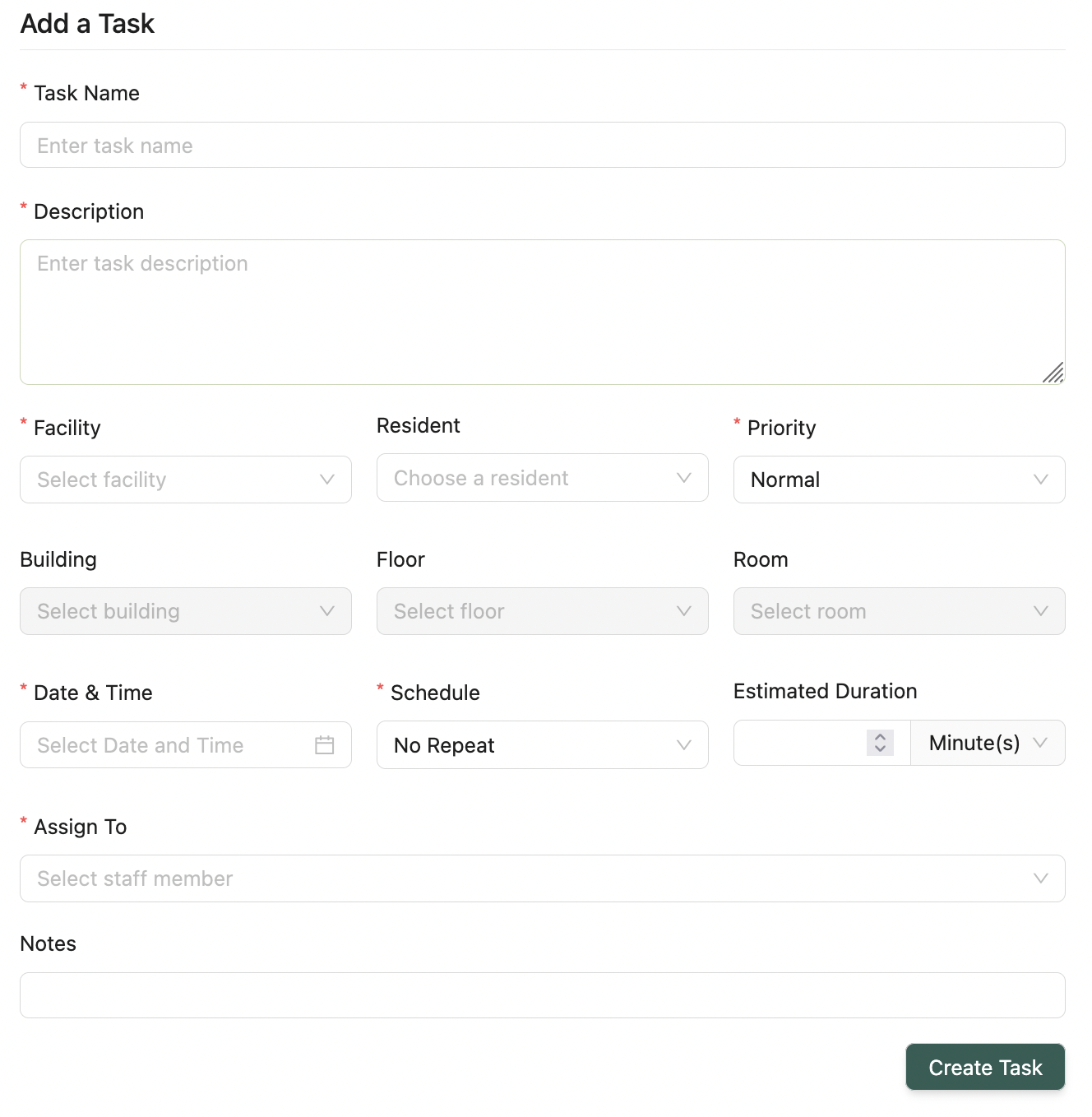
Must-fill fields:
- Task Name & Description
- Facility
- Priority
- Date & Time
- Schedule (Daily, Weekly, Monthly)
- Assigned Employee
Optional fields:
- Location (Building, Floor, Room)
🏷️ What do the task colors mean?
Tasks are color-coded to help you instantly recognize their type or priority. You’ll find a legend at the bottom-right of each view that tells you exactly what each color means.💡 Looking for something else?
Feel free to reach out to us at support@nirvala.in — we’re happy to help!