> ## Documentation Index
> Fetch the complete documentation index at: https://docs.nirvala.in/llms.txt
> Use this file to discover all available pages before exploring further.
# 🚀 Task: Overview
## ❓ What is the Task Overview tab?
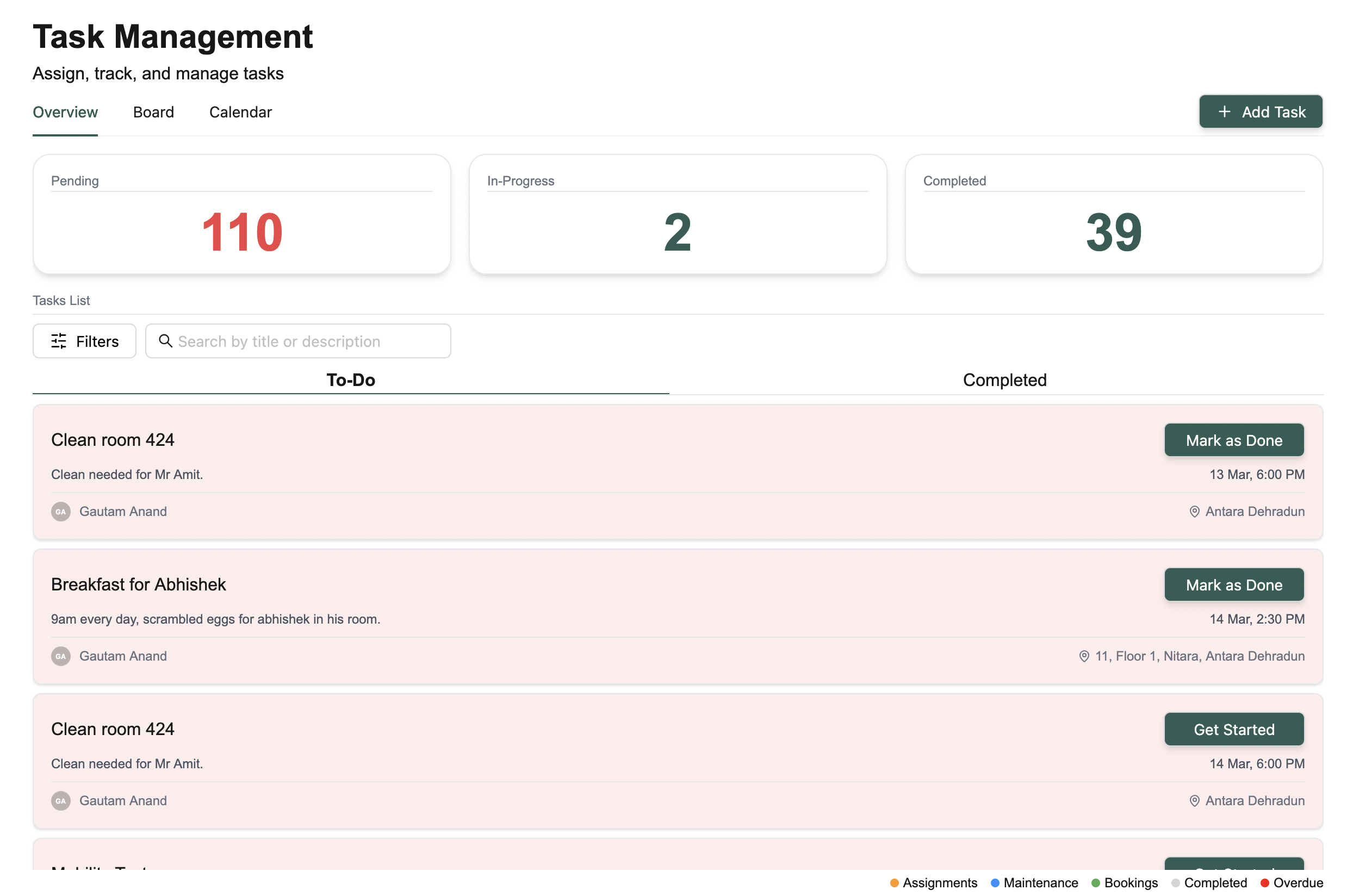
The [**Overview tab**](https://app.nirvala.in/dashboard/tasks/overview) gives you a clear summary of all your tasks — what's pending, what's in progress, and what's already completed.\
It’s designed to work seamlessly across **mobile**, **tablet**, and **desktop**.
 ***
### 🔢 At a glance: Summary Tiles
Right at the top, you’ll see summary tiles that show:
* ✅ How many tasks are **Pending**
* 🔄 What’s currently **In Progress**
* 🏁 And how many you’ve **Completed**
***
### 📋 Task List Breakdown
Below the summary, there’s a full list of your tasks organized into:
* 📝 **To-Do List** — A combination of pending and in-progress tasks
* ✅ **Completed List** — All tasks you’ve marked as done
Use this section to keep track of everything in one place.
***
### 🔍 Filter & Search Options
Need to find something quickly?
* **Filter by** task type or priority
* **Search** by task name or keywords in the description
Super helpful when you're juggling multiple things.
***
## 🧱 What info does each task show?
Every task tile gives you just the right details at a glance:
* 📄 Task name and a short description
* 👤 Who it's assigned to
* 🏢 Where it’s happening (Building, Floor, Room)
* ⏰ When it’s due
* 🚨 Priority level (so you know what needs attention first)
***
## 🛠️ What actions can I take on tasks?
Managing your tasks is simple:
* ▶️ **Get Started** — Kick off a pending task and move it to **In Progress**
* ✔️ **Mark as Done** — Wrap it up and move it to **Completed**
* 🔄 **Reopen** — Oops! Clicked done by mistake? Reopen it and move it back to your to-do list
***
## ➕ How do I create a new task?
Just click the **Add Task** button in the top-right corner. You’ll get a pop-up form to fill in the details.
***
### 🔢 At a glance: Summary Tiles
Right at the top, you’ll see summary tiles that show:
* ✅ How many tasks are **Pending**
* 🔄 What’s currently **In Progress**
* 🏁 And how many you’ve **Completed**
***
### 📋 Task List Breakdown
Below the summary, there’s a full list of your tasks organized into:
* 📝 **To-Do List** — A combination of pending and in-progress tasks
* ✅ **Completed List** — All tasks you’ve marked as done
Use this section to keep track of everything in one place.
***
### 🔍 Filter & Search Options
Need to find something quickly?
* **Filter by** task type or priority
* **Search** by task name or keywords in the description
Super helpful when you're juggling multiple things.
***
## 🧱 What info does each task show?
Every task tile gives you just the right details at a glance:
* 📄 Task name and a short description
* 👤 Who it's assigned to
* 🏢 Where it’s happening (Building, Floor, Room)
* ⏰ When it’s due
* 🚨 Priority level (so you know what needs attention first)
***
## 🛠️ What actions can I take on tasks?
Managing your tasks is simple:
* ▶️ **Get Started** — Kick off a pending task and move it to **In Progress**
* ✔️ **Mark as Done** — Wrap it up and move it to **Completed**
* 🔄 **Reopen** — Oops! Clicked done by mistake? Reopen it and move it back to your to-do list
***
## ➕ How do I create a new task?
Just click the **Add Task** button in the top-right corner. You’ll get a pop-up form to fill in the details.
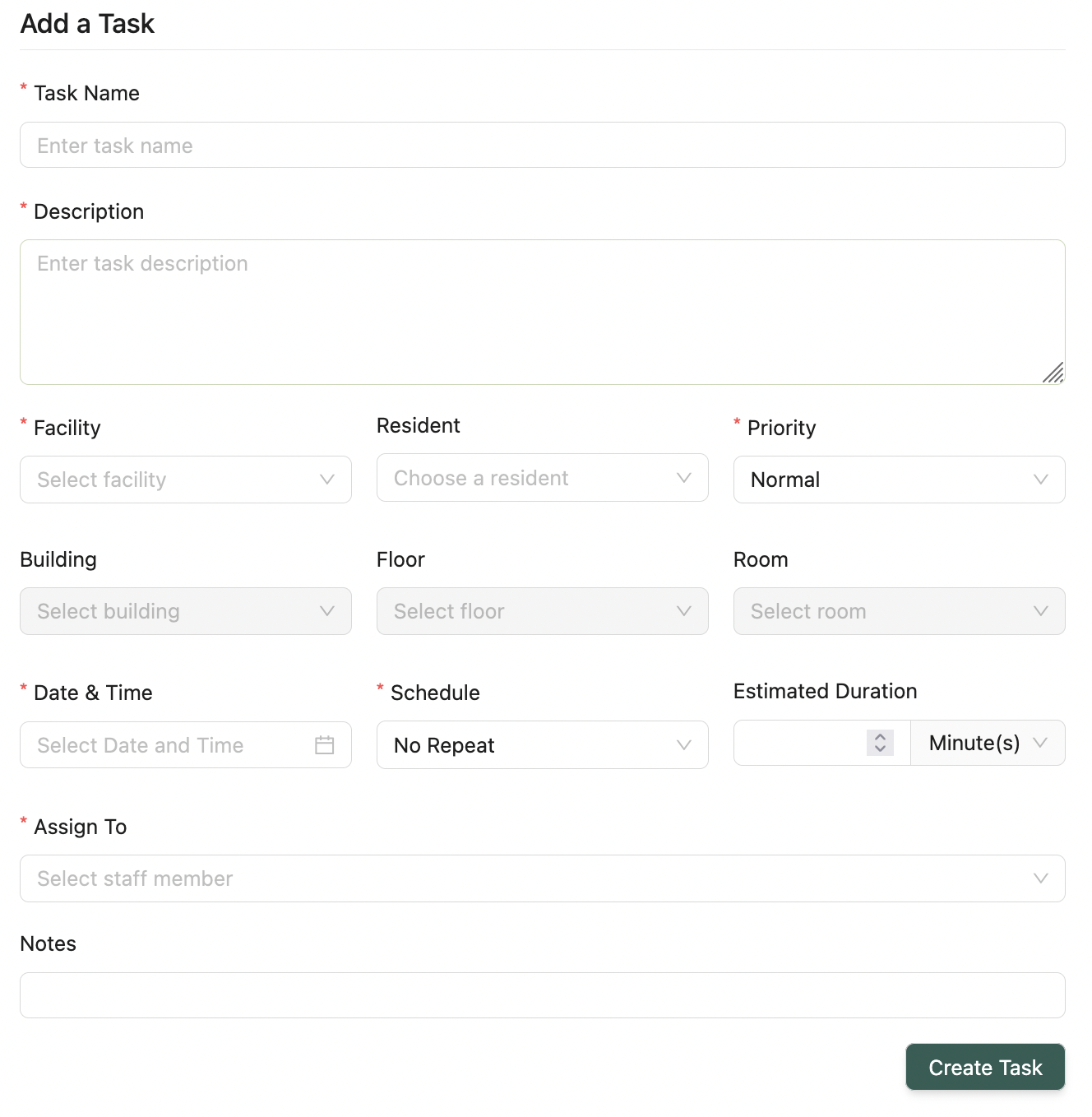 ### Must-fill fields:
* Task Name & Description
* Facility
* Priority
* Date & Time
* Schedule (Daily, Weekly, Monthly)
* Assigned Employee
### Optional fields:
* Location (Building, Floor, Room)
**Quick tip**: The more detail you add, the easier it is to manage later!
***
## 🏷️ What do the task colors mean?
Tasks are color-coded to help you instantly recognize their **type** or **priority**.
You’ll find a **legend** at the bottom-right of each view that tells you exactly what each color means.
***
💡 **Looking for something else?**\
Feel free to reach out to us at [support@nirvala.in](mailto:support@nirvala.in) — we’re happy to help!
### Must-fill fields:
* Task Name & Description
* Facility
* Priority
* Date & Time
* Schedule (Daily, Weekly, Monthly)
* Assigned Employee
### Optional fields:
* Location (Building, Floor, Room)
**Quick tip**: The more detail you add, the easier it is to manage later!
***
## 🏷️ What do the task colors mean?
Tasks are color-coded to help you instantly recognize their **type** or **priority**.
You’ll find a **legend** at the bottom-right of each view that tells you exactly what each color means.
***
💡 **Looking for something else?**\
Feel free to reach out to us at [support@nirvala.in](mailto:support@nirvala.in) — we’re happy to help!